IPTV for Firestick in Ireland: compatibility and setup
Check your Firestick model, choose a compatible player and follow the setup steps. Understand app activation and test before buying a plan.

Other device guides
On Firestick? Jump to another setup.
 Samsung Smart TVIBO Player Pro
 LG Smart TVIBO Player Pro
 Sony Smart TVIBO Player Pro
 Android TVIBO Player Pro
 Android PhoneIBO Player Pro
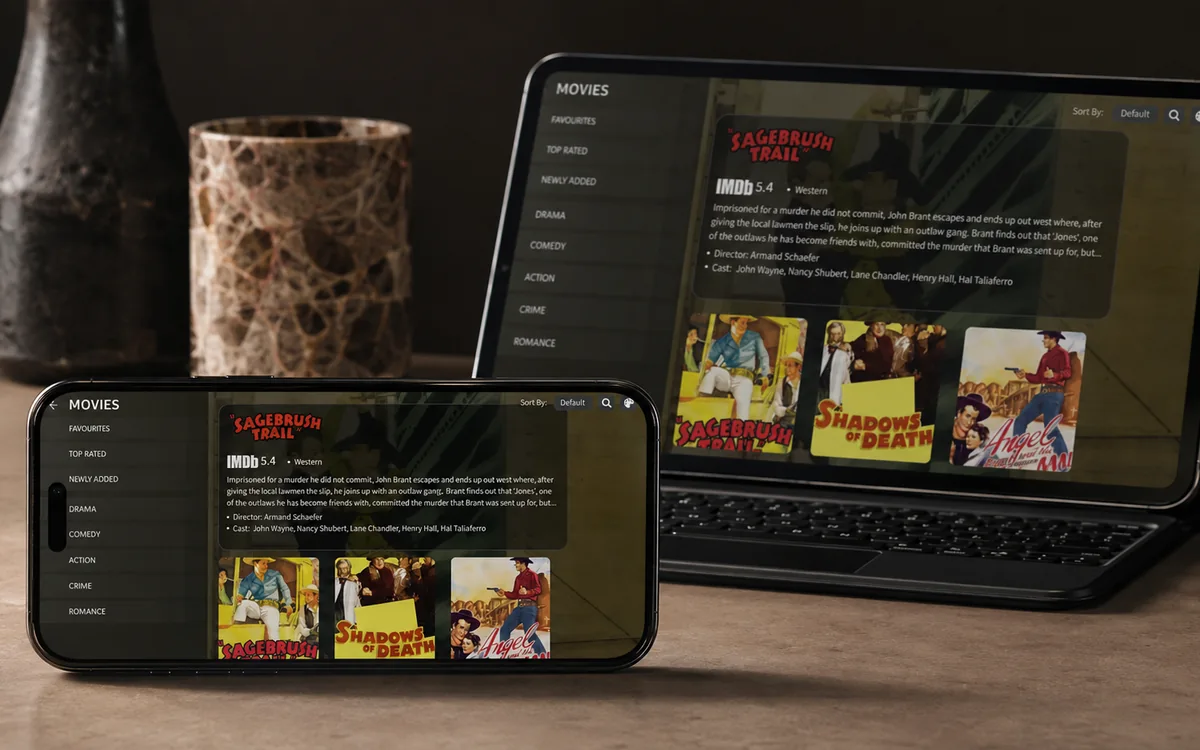 iPhone & iPadIBO Pro Player
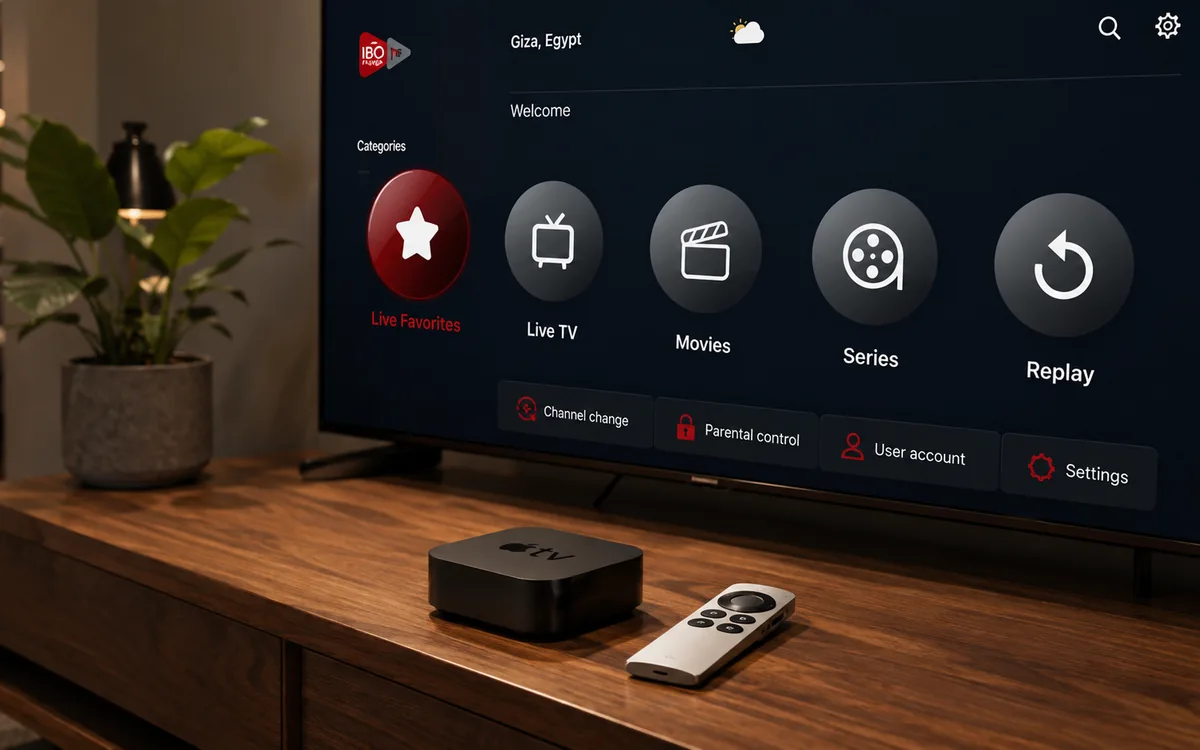 Apple TVIBO Pro Player
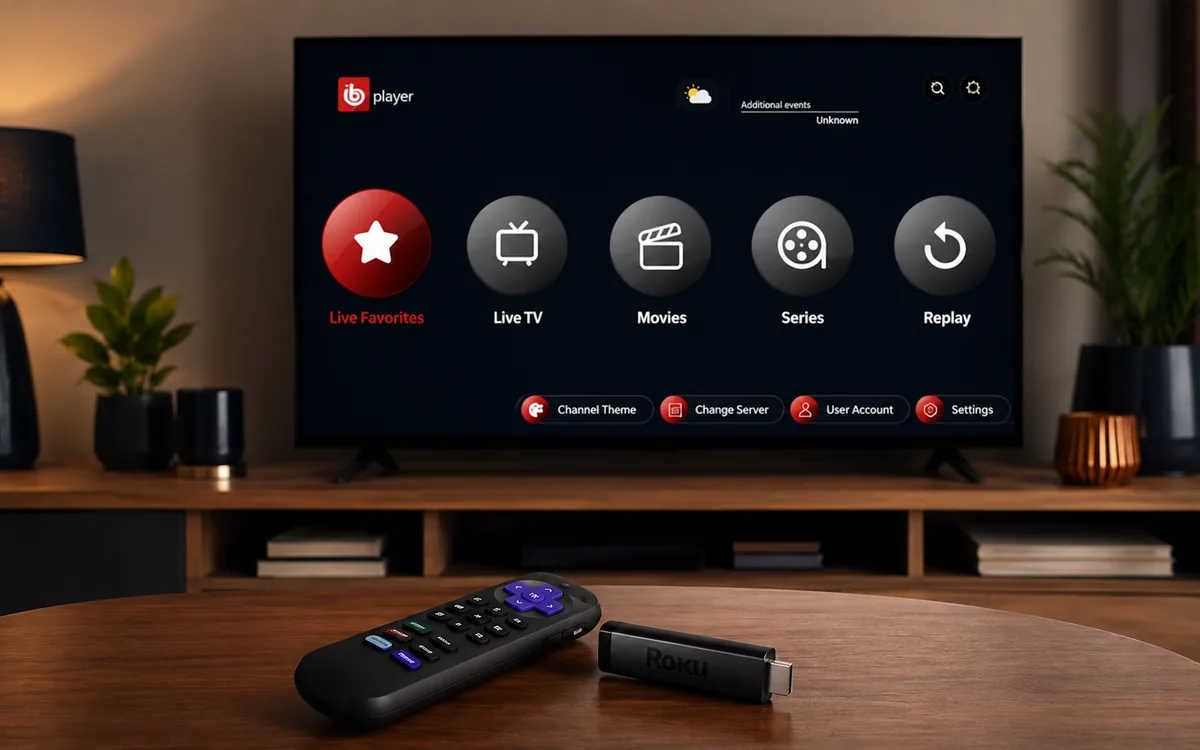 RokuIBO Pro Player
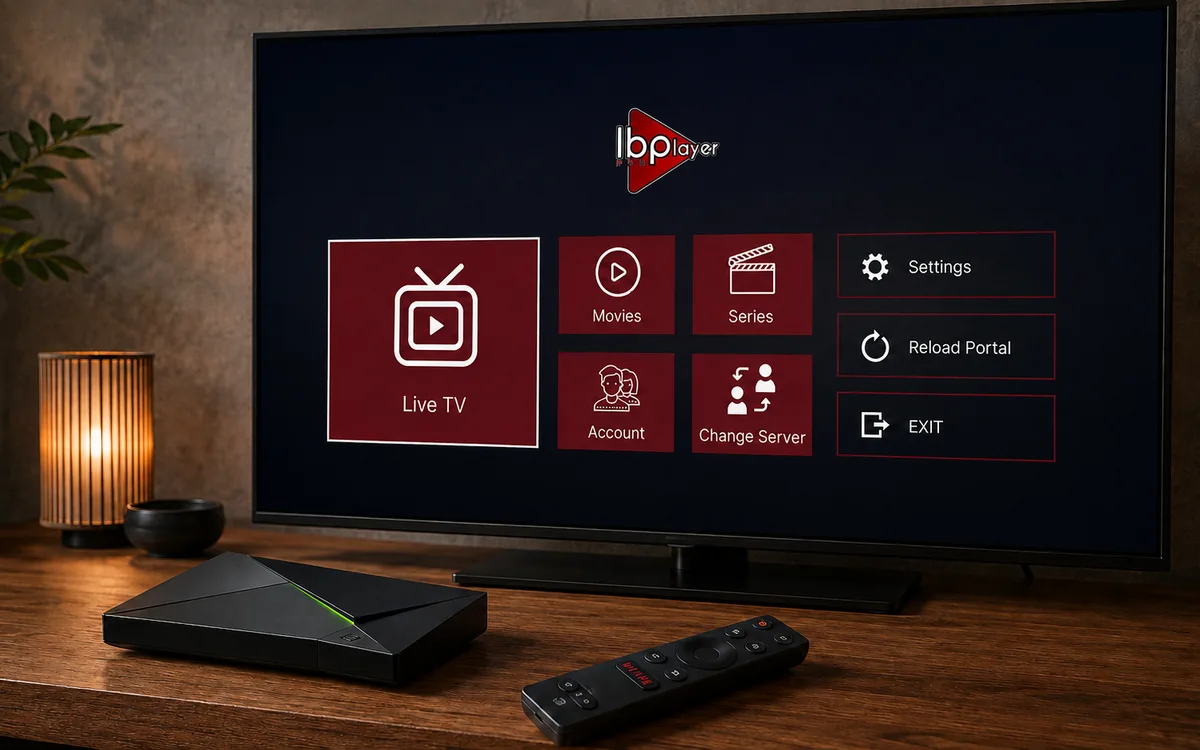 Nvidia ShieldIBO Player Pro
 Windows LaptopIBO Player
 MacIBO Player
 ChromecastGoogle TV player
 Android TV BoxIBO Player Pro
 MAG BoxPortal setup
 KodiKodi add-on
 Projector & Cinema RoomFirestick or Android box
 Best IPTV Player AppsIBO, BOB, VLC
Check TellyPal on your own telly before paying.
Start a free 24-hour trial with no card. Check your channels, supported player and device, then read the current plans and activation terms.
IPTV for Firestick needs three separate things: a compatible Fire TV device, a player app and a subscription or playlist. Installing an app does not include channels. Before you buy a plan or activation, check which operating system your exact Firestick uses.
This guide covers TellyPal setup on compatible Fire OS devices in Ireland. If you are in the UK, use the UK device and player guide and UK subscription prices. A Firestick name or purchase year alone does not establish compatibility.
New to TellyPal? Request the free 24-hour Ireland trial, with no card required, and tell support your exact model and player. Already have an account? Follow the checks below before installing anything else. Setup time depends on your device, downloads and support availability; there is no guaranteed five-minute activation.
Check your Firestick before installing an IPTV player
Open Settings > My Fire TV > About and note the model and software version. Amazon's Fire TV device identification table distinguishes Fire OS and Vega OS models.
| What your device reports | What to do next |
|---|---|
| Fire OS, with support for the chosen Android player | Follow the Fire OS steps below after checking the player's requirements. |
| Vega OS, including Fire TV Stick 4K Select and Fire TV Stick HD (2026) | Do not follow an Android APK or Downloader tutorial. Check the Amazon Appstore for an app supported on that exact model, or ask support about an existing compatible device. |
| Model or operating system unclear | Send support the model and software-version text before paying for a player or new hardware. |
Vega and Fire OS have different app platforms. Amazon documents a developer route for installing Vega apps, but that is not a way to make an Android APK compatible. Do not assume that all IPTV is impossible on Vega, or that every older Firestick supports a particular app. The Vega compatibility guide explains what to check.
What you need before you start
- Your compatible Fire OS device, its remote and a stable internet connection.
- Enough available storage to install the player.
- The exact player name and download route agreed with support. Similar IBO app names do not mean the same licence, device key or activation portal.
- Your own subscription or trial details. Keep playlist URLs, usernames and passwords private.
- A phone if support needs a photo of the player's pairing screen. Send it only in your existing support conversation, never in a public review or comment.
Test on the connection and screen you normally use. A broadband speed figure alone cannot guarantee playback. The Ireland internet-speed guide explains how to test the connection at the telly rather than relying on the advertised package speed.
Step 1: Choose the player and check its download source
TellyPal's IBO Player Pro guide and the download panel on this page provide the current routes used for that player. Other players may work with your account, but confirm the exact app and device first. Do not pay for a second app if your existing compatible, activated player already works.
The current TellyPal download listing uses Downloader code 481220 for its IBO Player Pro route. A short code is a shortcut, not proof that a file is authentic or compatible. Check the destination and app name against the download listing before installing. If the destination differs, the code stops working or Amazon blocks an app, stop and ask support. Do not disable device protections to force an unsupported installation.
For a different IBO app, use its own IBO Player guide rather than assuming the Pro instructions apply.
Step 2: Install Downloader on a compatible Fire OS device
If support has confirmed an APK installation route:
- Open the Amazon Appstore on your Firestick and search for Downloader, published by AFTVnews.
- Check the publisher, then choose Get or Download if it is available for your device and account.
- Open Downloader and read any permission prompt before deciding whether to allow it.
If Downloader is unavailable, check your model, operating system and Amazon account region through Amazon's normal help. Do not switch to a made-up account region or download a lookalike app to get around a restriction.
Step 3: Allow only the confirmed installation route
On supported Fire OS versions, open Settings > My Fire TV > Developer Options > Install unknown apps and select Downloader. Menu wording varies by model and version. If Developer Options is hidden, check Amazon's instructions for your exact device; a missing menu is not proof that a generic tutorial applies.
Only enable the permission needed for an installation you have checked. You can turn Downloader's installation permission off again afterwards. These steps are for Fire OS, not Vega OS.
Step 4: Install and open the agreed player
- Open Downloader and enter the confirmed code or download address.
- Check the destination, file and app identity before choosing Install.
- Open the player after installation. If the installer reports an invalid package, stop and recheck compatibility instead of trying unrelated APKs.
- Follow that player's pairing or sign-in screen. For the IBO Player Pro route, support may ask for the displayed MAC address and Device Key.
The app and the TellyPal subscription are separate. An app trial, where offered by its publisher, does not extend or replace TellyPal's 24-hour service trial.
Step 5: Ask support to connect your account
Use your existing support chat to confirm the exact player. If asked, send a clear photo of its MAC and Device Key screen and say which device you are setting up. Do not include unrelated account screens or publish the photo.
Support can explain how your playlist is connected and confirm when trial access begins. A player showing its home screen does not mean a subscription has already been added. Wait for confirmation, then reopen the app and check the content you actually need.
To close a stuck app on Fire TV, use Settings > Applications > Manage Installed Applications > your app > Force Stop, then reopen it from Home. Menu wording can vary. Swiping up is not a Firestick remote instruction. Avoid clearing app data or uninstalling it unless support explains what settings or pairing details would be lost.
Subscription prices and player activation are separate
Use the current Ireland plans for your quote. One account costs €70 for six months, €100 for ten months, €180 for 24 months or €300 for Lifetime. Lifetime includes six years of guaranteed service, with no commitment beyond those six years. These are one-off subscription payments, not an automatic monthly renewal.
On the six- and ten-month plans, TellyPal charges €15 for initial player activation only when it needs to activate that player. For new 6- or 10-month purchases on Saturdays and Sundays in Ireland local time, initial player activation is free. Your own working compatible player has no initial activation charge. Initial activation is included on the 24-month and Lifetime plans. For one account needing activation, the six- and ten-month starting totals are therefore €85 and €115.
Do not use a generic €7–€10 app price or an app's trial screen as your TellyPal quote. A direct purchase from a player publisher is a separate transaction on that publisher's current terms. Confirm the exact app, who receives the payment and whether you need activation before paying either party. We do not promise a permanent licence for every similarly named player.
Service and the 90-day guarantee start at first payment. Read the refund policy: separately charged player activation and payment-plan fees are non-refundable, and a free bundle account has no cash refund.
Test IPTV on your Firestick before choosing a plan
During the trial, check the programmes, guide, audio, subtitles and controls you actually use, where available. Watch a continuous session at your normal viewing time while the household uses broadband normally. The peak-hour viewing checklist helps you record useful observations; it is not proof of a guaranteed result.
If playback stalls, note the programme, time, app version and Wi-Fi or Ethernet connection. Test nearer the router or compare Ethernet if your model supports it. Avoid buying adapters or changing providers until you have narrowed down the problem. A paid subscription does not automatically fix a poor trial.
Confirm current programme availability and the permissions covering your viewing territory before paying. A working stream, a large catalogue or a review score is not proof of distribution rights. This guide does not promise every sports fixture, permanent channel availability or uninterrupted playback.
Replacing a Firestick or using more screens
A standard TellyPal account is for one chosen device. Keeping another device active requires a separate account. Buy two subscriptions on the same plan and get a third separate account free; each account serves its own device. Ask for the full quote, including any players needing activation.
Moving an account to another device is free on all four plans. If the destination player needs activation, the separate player-activation charge is €15 per player; an already working, activated player has no activation charge. The transfer removes access from the old device and preserves the remaining service term. Confirm the destination app and any activation charge before proceeding.
Firestick IPTV questions
Does IPTV work on every Firestick?
No universal compatibility is promised. Check the exact model, operating system and app. Fire OS and Vega OS require different app support. Do not buy a new stick based only on the word "Firestick" in a listing.
Which IPTV app is best for Firestick?
Choose one that supports your model, account format and the controls you use. TellyPal usually checks an IBO player route first, but player choice is not an independent ranking or a guarantee that an app will remain available. Confirm an existing working player before buying another licence.
Can a Firestick receive Saorview directly?
A Firestick has no aerial tuner for Saorview. Broadcaster apps and subscriptions are separate options with their own availability, device requirements and terms. Do not assume every aerial channel is included in an IPTV subscription.
How long does setup take?
It depends on compatibility, downloads, account pairing and support availability. Check the device first and arrange the trial for a time when you can use it. There is no fixed activation deadline in this guide.
Where do I ask for help?
Send us a photo of your MAC + Device Key screen on WhatsApp in your existing support conversation when support asks for it. New customers can request the free 24-hour Ireland trial, with no card required, before choosing a paid plan. UK customers should use the UK trial.